


 美国
 Best Seller
 Label Printers
 All PDAs
 All Tablets
 All Thermal Labels
 Printer Accessories
 Yes, you can print shipping labels straight from your phone, no computer required. All you need is a shipping label (usually a PDF from your carrier or marketplace app), a printer that connects to your phone, and the right label paper. This guide walks you through the fastest setup, plus a no-printer backup option.
Quick Answer: How to Print Shipping Labels From Your Phone
- Buy and generate your label in a shipping app (USPS, UPS, FedEx, Pirate Ship, eBay, Etsy, Shopify, Amazon Seller, etc.).
- Save or open the label as a PDF.
- Pair a Bluetooth thermal label printer with your phone.
- Choose 4x6 as the paper size and tap Print.
That's it. The rest of this article covers each step in detail and how to avoid the most common mistakes.
What You Need to Print Shipping Labels From a Phone
A phone and a shipping app. Any iPhone or Android phone works. Most carriers and selling platforms let you buy postage in their app or mobile site and download the label as a PDF.
A printer that supports mobile printing. You have two realistic choices:
- Bluetooth thermal label printer: Best for shipping. It prints 4x6 labels without ink or toner, and pairs wirelessly with your phone.
- Regular Wi-Fi inkjet or laser printer: Works through AirPrint (iOS) or Mopria (Android), but you'll waste ink and need sticky paper or tape, and labels are often smaller than 4x6 inches.
4x6 thermal labels. This is the standard size accepted by major carriers and marketplaces, so one roll covers almost every package you send.
Step-by-Step: Print a Shipping Label From Your Phone
Step 1: Create and download your label
Open your carrier or marketplace app and purchase the shipping label. When it's ready, tap Download, Save as PDF, or Share so the file is stored on your phone. Select the 4x6 inch format if the platform asks for a label size. Standard letter-size output will shrink on a thermal label.
Step 2: Connect your Bluetooth label printer
Turn on the printer, enable Bluetooth on your phone, then pair it through the printer's companion app or your phone's Bluetooth settings. Follow the quick-start guide that comes with your model, since the exact pairing process varies by printer.
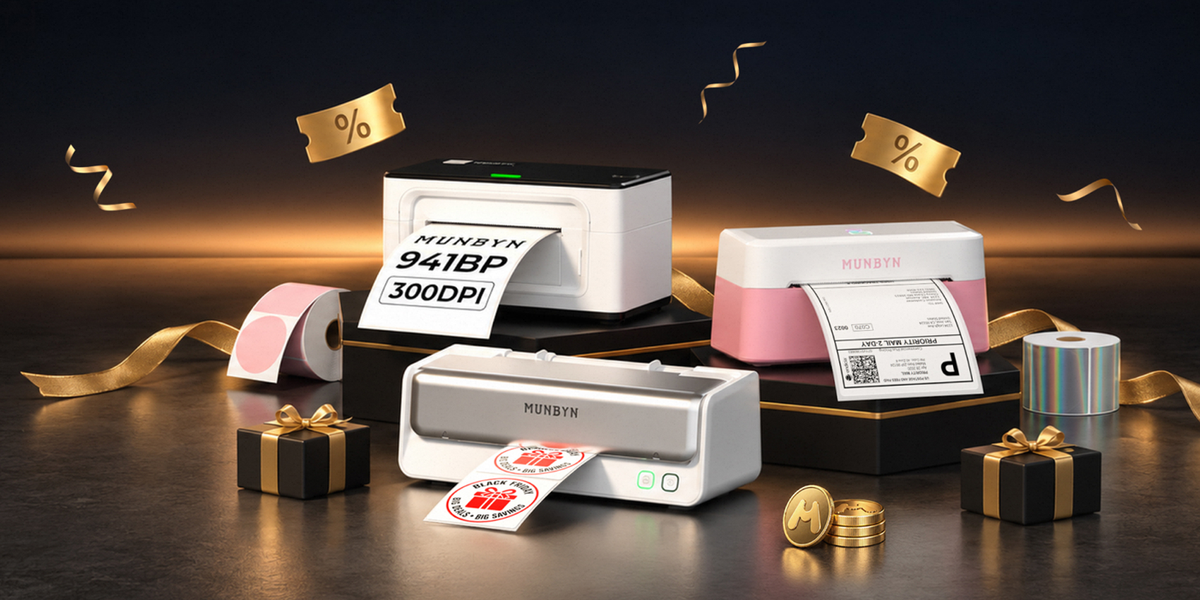
If you want a ready-to-go option, the MUNBYN RW941BP Bluetooth Thermal Label Printer is built for this exact workflow: a compact, ink-free thermal printer designed to print 4x6 shipping labels wirelessly from a phone. It suits small sellers, Etsy and eBay shops, and anyone who ships from a kitchen table rather than a desk. Check the product page for current phone compatibility and specs. For iPhone users, a MUNBYN AirPrint label printer offers a convenient way to print shipping labels directly from your device.

Step 3: Open the PDF and send it to the printer
Open the label file, tap Share or Print, and pick your printer or its app. Before you print, check these settings:
- Paper size: 4x6 inch (100x150 mm)
- Scale: 100% or "Fit to page" (avoid shrinking)
- Orientation: Portrait, unless your label is built in landscape
- Copies: 1, unless you're shipping multiple identical packages
Step 4: Check the label and stick it on
Before you peel and stick, confirm the barcode and address are sharp and not cut off. Place the label flat on the largest side of the package, away from seams and tape, so scanners can read it easily. Then drop it off or schedule a pickup.
What Is the Best Way to Print Shipping Labels From a Phone?
The best method depends on how often you ship packages and what equipment you already own.
| Printing method | Best for | Main consideration |
|---|---|---|
| Bluetooth thermal label printer | Home businesses and mobile sellers | Requires compatible hardware and usually a dedicated app |
| Wi-Fi printer | Users who prefer wireless network printing | Phone and printer may need to be on the same network |
| Standard inkjet or laser printer | Occasional shipments | Uses paper or adhesive label sheets and may require extra handling |
| Computer-connected label printer | Existing desktop shipping stations | Usually requires transferring the label from your phone to the computer |
If you ship only a few packages each month, your existing printer may be sufficient. If you process orders every day, a dedicated thermal label printer can simplify label preparation and eliminate the recurring cost of ink or toner for thermal printing.
Choosing the Right Labels
Even a great printer can't fix the wrong label paper. For clean barcodes and fewer misfeeds, use direct thermal labels that match your printer's width and roll size.
Browse MUNBYN shipping labels to find 4x6 rolls and fanfold options suited to most thermal printers. Not sure about print quality or fit with your printer? Run the shipping label sample test first, so you can test before committing to a bulk order.

No Printer? Use a QR Code Instead
If you don't own a printer yet, some carriers offer a label-free option. Instead of a printed label, you receive a QR code on your phone, which a staff member scans at a participating drop-off location (for example, certain post offices or UPS Store locations), and they print the label for you.
This works as a one-off solution, but it can be slower and limits you to certain locations and carriers. If you ship more than a few packages a month, owning a thermal printer is usually faster and cheaper.
Troubleshooting: Common Problems and Quick Fixes
The label prints too small. The PDF is probably formatted for letter paper. Re-download it as a 4x6 label, or set the print scale to 100% and the paper size to 4x6.
The printer won't pair with your phone. Turn Bluetooth off and on, restart the printer, and remove any old pairing entries. Make sure the printer isn't already connected to another device.
The print is faded or streaky. Thermal printing needs no ink, so fading usually means a dirty print head or low-quality paper. Gently wipe the print head with an alcohol wipe, and use compatible direct thermal labels.
The label feeds off-center or blank labels come out. Recalibrate the label gap or sensor, and check that the roll is loaded straight with the printing side facing up.
The barcode won't scan. Avoid placing the label over tape seams or folds, and reprint if the barcode looks blurry or broken.
FAQs
1. Can I print a shipping label from my iPhone?
Yes. Download the label as a PDF from your shipping app, then use AirPrint or your Bluetooth printer's app to print it. A 4x6 thermal printer gives the cleanest result.
2. Can I print shipping labels from an Android phone?
Yes. Android supports Bluetooth printers. Save the label as a PDF, open it, choose your printer, and set the paper size to 4x6.
3. What size should a shipping label be?
4x6 inches is the standard for most carriers and marketplaces, including USPS, UPS, FedEx, eBay, and Etsy.
4. Do I need ink to print shipping labels from my phone?
Not with a thermal printer. Thermal printers use heat-sensitive label paper, so there are no ink or toner costs.
5. Is a Bluetooth printer better than a Wi-Fi printer for shipping labels?
For most sellers, yes. Bluetooth thermal printers are compact, don't need a network connection, and are built for 4x6 labels, making them faster and cheaper per label than regular office printers.
Final Thoughts
Printing shipping labels from your phone is simple once the setup is in place: download the label, pair your printer, set the size to 4x6, and print. For anyone shipping regularly, a Bluetooth thermal printer like the MUNBYN P941B paired with the right shipping labels turns your phone into a complete mobile shipping station. Try the sample label test to see the print quality for yourself.

Share:
Best Money Counter for Retail Businesses: How to Choose the Right Cash Counting Machine
How to Count Cash Quickly: Manual Methods and Faster Alternatives